
How to Check and Flip Mesh Face Normals in Blender
CREATED: 2023 / 08 / 04 Fri
UPDATED: 2023 / 08 / 04 Fri
I use Blender in English. Version is 3.6.1.
Checking Mesh Face Orientation with Face Orientation
First, how to check whether mesh faces are correctly oriented.
Select the mesh, enter Edit Mode, then open Viewport Overlays in the upper left of the screen. You should see a Face Orientation checkbox around the middle.
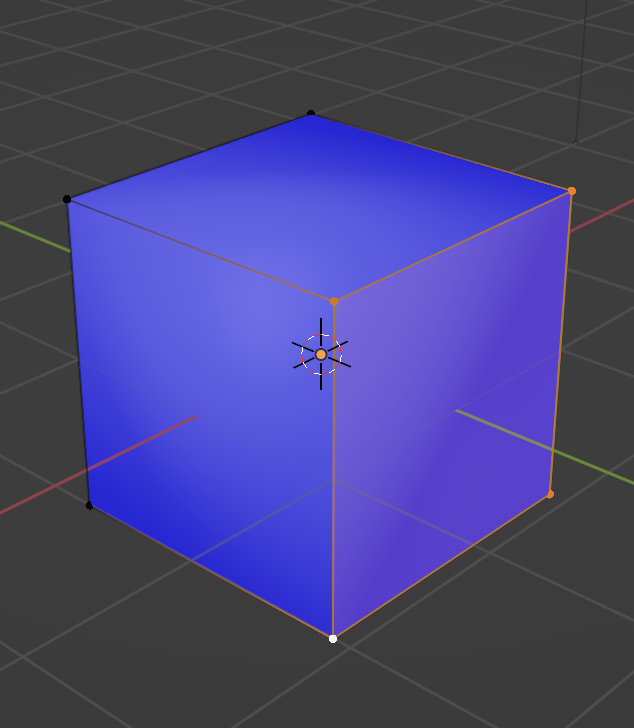
Checking it makes the mesh turn completely blue, as shown in the image.
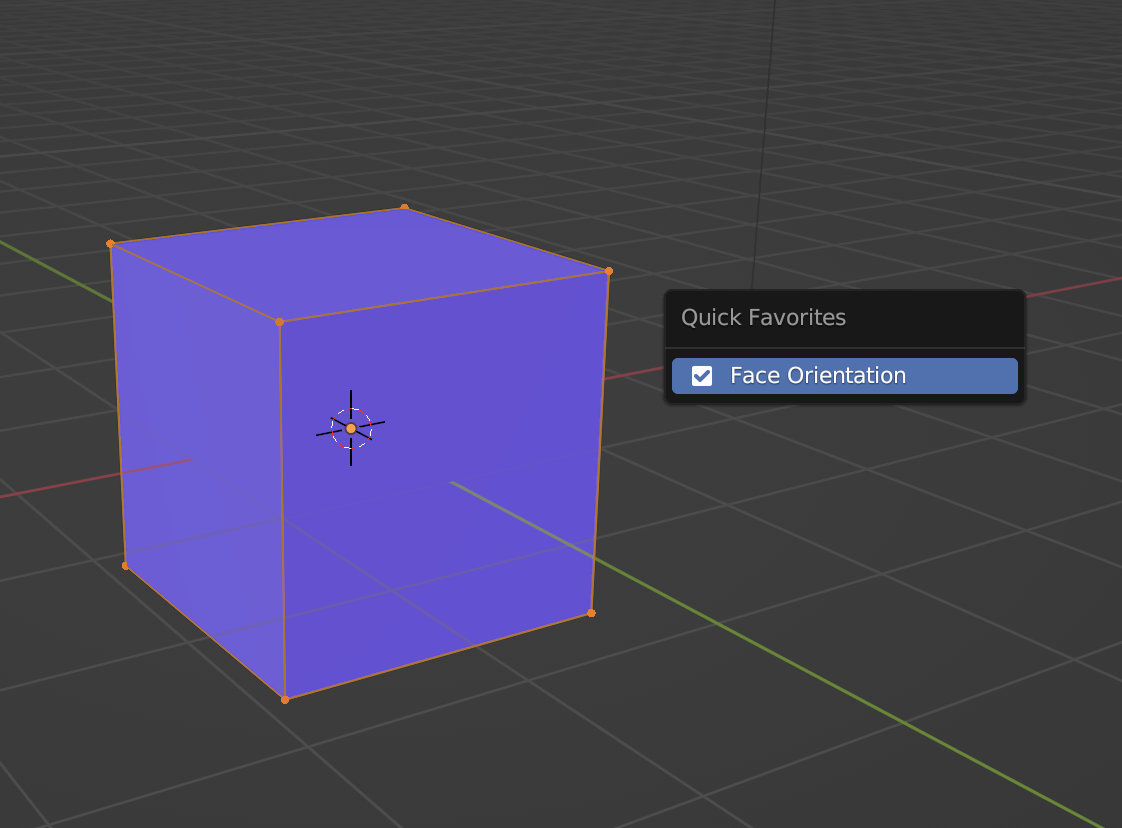
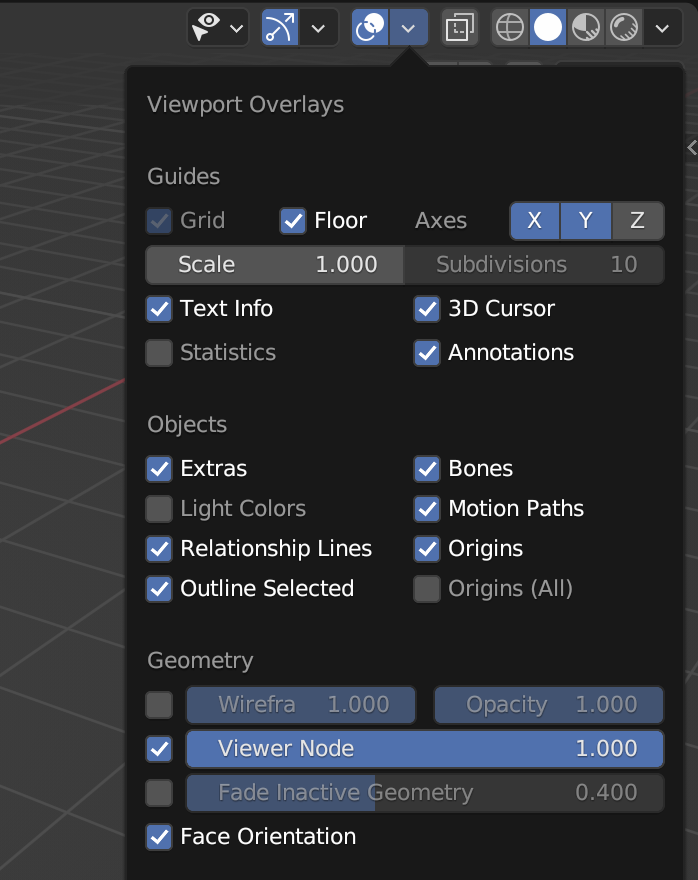
If all faces are blue, that means all faces are facing outward. No problem — unless you intentionally want them inward.
However, while working, faces can accidentally get flipped.
When a face is flipped inward, enabling Face Orientation shows it in red, like this:
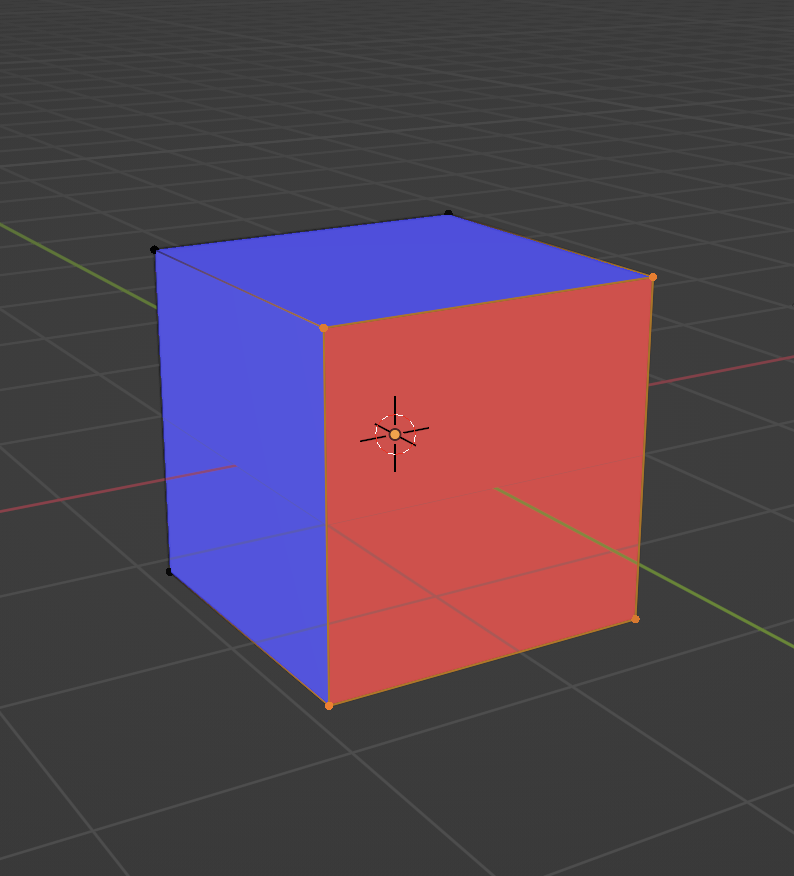
If it’s unintentional, you’ll need to flip it back.
Flipped faces can cause odd shading artifacts when using Smooth Shading. Tweaking the Auto Smooth angle helps somewhat, but if the root cause is a flipped face, it’s better to fix it directly.
Flipping the Inverted Face
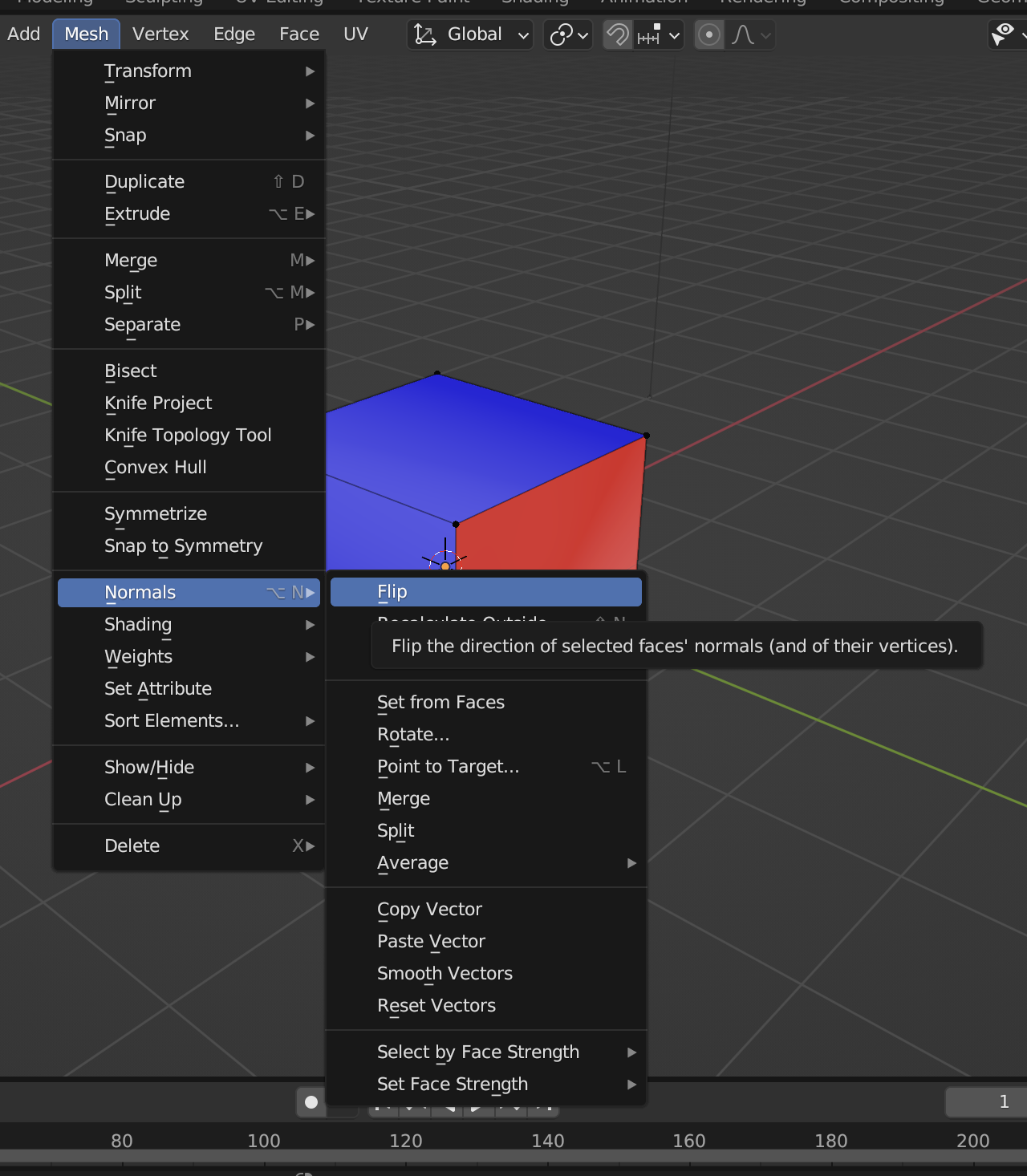
In Edit Mode, go to Mesh > Normal > Flip from the top menu to flip the face.
That’s all there is to it.
Appendix
I’ve started writing about Blender too. I plan to keep the posts short and focused. That’s all.